Surveys help you track how participants are progressing through their learning journey and measure the real impact of your programmes. Instead of manually checking in with everyone, Navigatr automatically sends surveys to participants at the perfect moments: when they start a pathway, when they complete it, and 12 weeks later to see long-term results.
This means you get consistent, valuable data about programme effectiveness, while participants get to see their own progress and development over time.
Surveys are available as a premium feature. If you would like to enable surveys for your organisation, contact Navigatr Support.
How Do Surveys Work?
Once you enable surveys for a pathway, everything happens automatically. You do not need to remember to send anything. Navigatr takes care of it for you. Participants receive survey invitations at three important moments:
- Baseline Survey: Sent when someone starts a pathway. This captures where they are starting from: their confidence levels, skills, and current situation.
- Completion Survey: Sent when someone finishes a pathway. This shows what changed right away and what they achieved.
- Follow-Up Survey: Sent 12 weeks after completion. This reveals the long-term impact and whether the changes stuck.
Participants are notified of available surveys in several ways, making it easy for them to respond:
- Email: They receive an email with a direct link to complete the survey.
- Notifications: They see a notification in Navigatr that takes them straight to their survey.
- Settings page: They can visit their profile settings anytime to see all their surveys, both ones they need to complete and ones they have already finished.
What is It Like to Complete a Survey?
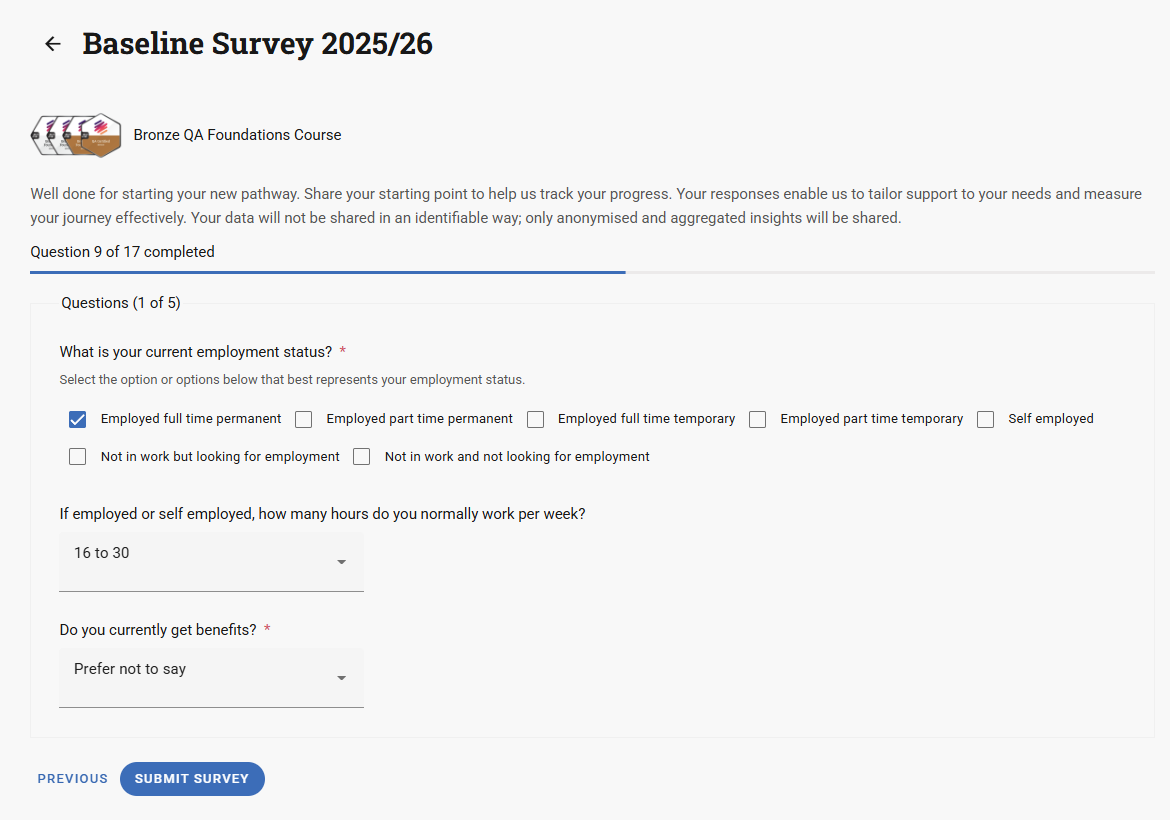
We have designed surveys to be quick and easy to complete. Here is what participants can expect:
- See your progress: A clear progress bar shows how far through the survey you are, so you know how much is left.
- Organised by topic: Questions are grouped into sections (like "Employment & Benefits" or "Skills Development"), making it easy to work through.
- Never lose your answers: Your responses are saved automatically as you go, so if you need to take a break, you can come back later and pick up exactly where you left off.
- Complete on any device: Start on your phone, finish on your laptop. It all syncs automatically.
- Skip optional sections: Equality monitoring questions are completely optional. You can skip the whole section if you prefer. It will not affect anything.
What Information Do Surveys Collect?
Surveys gather information that helps you understand both the immediate and long-term impact of your programmes:
- Personal development: How confidence, motivation, and skills change over time, from when someone starts to when they finish and beyond.
- Employment outcomes: Whether participants found work, improved their job situation, or progressed in their careers.
- Achievements: Qualifications gained, training completed, interviews attended, and work placements finished.
- Equality monitoring (optional): Demographic information that helps ensure programmes are accessible to everyone. This is completely optional and only used in anonymised reports to identify any barriers to employment.
Why Use Surveys?
Surveys save you time while giving you the data you need to demonstrate programme impact:
- Prove your impact: Generate reports showing how your badging programmes are making a difference, with data that aligns with standard performance measures.
- No manual work: Surveys are sent automatically at exactly the right moments. You do not need to remember to follow up with anyone.
- Better participant engagement: Participants can see their own progress and development, which helps them stay motivated and engaged.
- See long-term results: Track both immediate outcomes and whether changes last over time, giving you a complete picture of programme effectiveness.
- Ensure fair access: Optional equality monitoring helps identify any barriers and ensures your programmes are accessible to everyone.
- Higher completion rates: Automatic reminders help ensure more people complete surveys, and the autosave feature means participants never lose their progress.
Managing Surveys as an Administrator
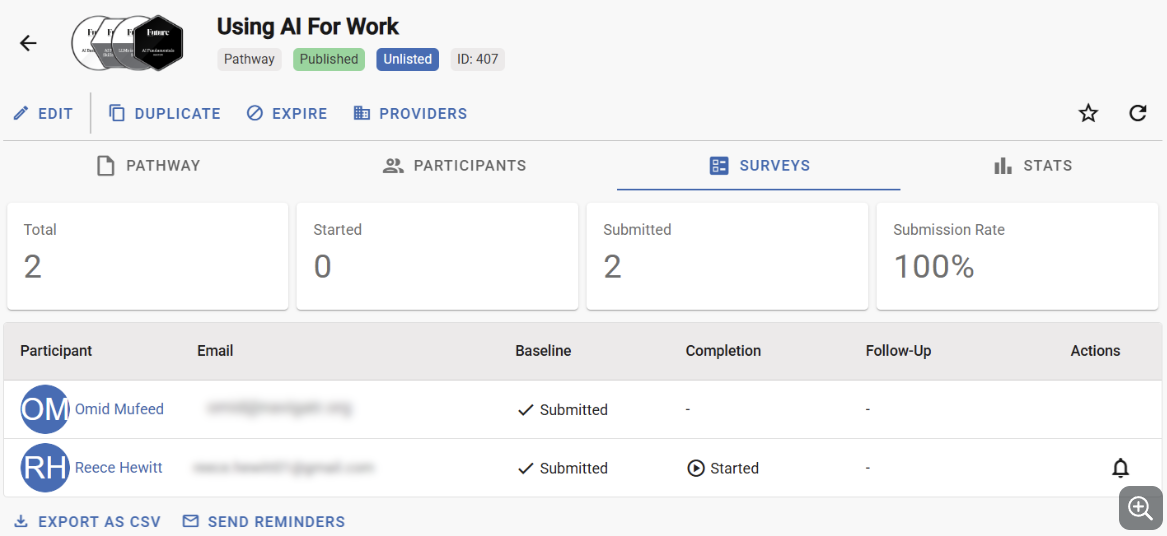
As an admin, you have everything you need to manage surveys and track results:
- See everything at once: The Pathway Surveys tab shows you all participants and their survey status: who has been invited, who has started, and who has completed each survey.
- Track key numbers: View statistics like how many surveys have been sent and completion rates.
- Send reminders easily: If someone has not completed their survey, you can send them a reminder with one click. You can also send reminders to multiple people at once.
- Export your data: Download survey data as a CSV file for your own analysis. Do not worry: equality monitoring data is automatically excluded to protect participant privacy.
- Monitor across your organisation: See survey engagement statistics at the pathway, provider, and community levels to understand how surveys are performing across your whole organisation. Learn more about stats
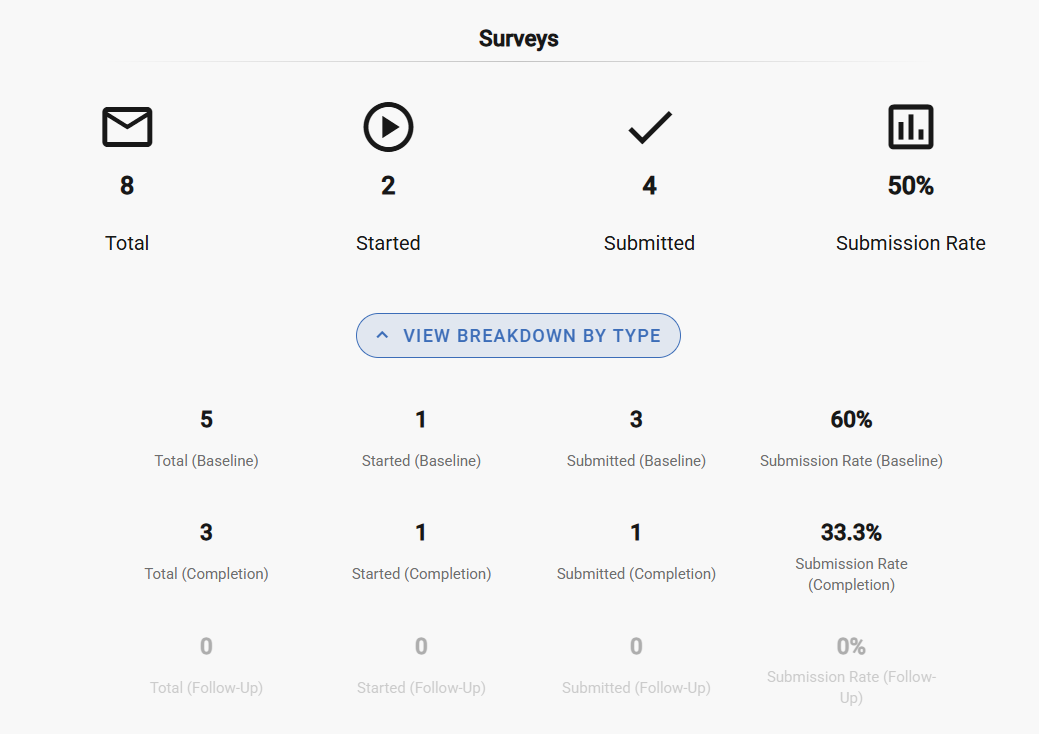
The data shown is for demonstration purposes and does not represent real learners.
Understanding Your Impact Reports
Once participants start completing surveys, you get access to three types of analytics that show the difference your programmes are making. All of this data is aggregated and anonymised. You see percentages and totals across your cohort, never individual responses.
These reports are available at pathway, provider, and community level, so you can report at whatever scale your funders or commissioners need.
Hard Outcomes
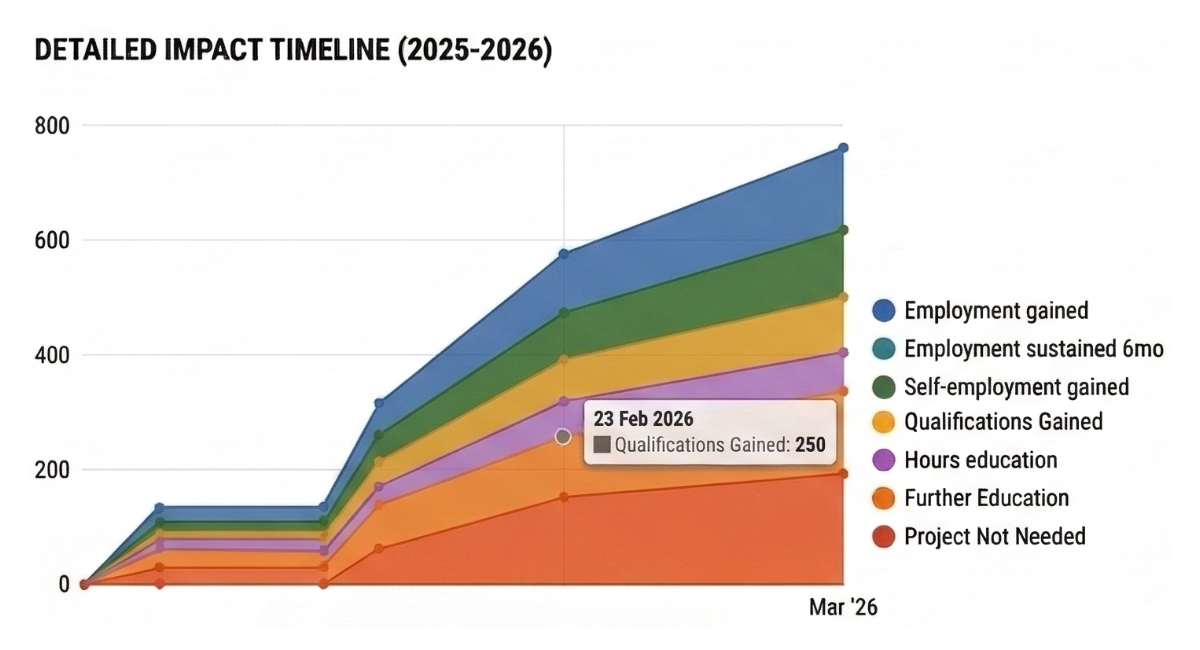
Hard outcomes track the concrete changes that participants report in their Follow-Up Survey, 12 weeks after completing a pathway. These include:
- Employment gained or sustained
- Self-employment gained or sustained
- Qualifications achieved
- Improvements in job quality, including hours, pay, and security
- Progression into further education
- Reduced reliance on benefits
Each outcome is shown as a total count and a percentage of all participants who completed a Follow-Up Survey. These are the numbers funders and commissioners typically ask for when evaluating a programme.
Distance Travelled
Distance travelled shows how much participants changed between their Baseline Survey and their Completion Survey. It covers five areas:
- Confidence
- Motivation
- Skills
- Knowledge
- Awareness
For each area, you see the percentage of participants who improved, alongside average scores at baseline and at completion. This lets you show the journey, not just the endpoint. It is particularly useful for demonstrating soft outcomes to funders who want to understand the full picture of change, not just employment figures.
Demographic Breakdown
The demographic breakdown shows who is taking part in your programmes. It covers age band, sex, ethnic group, disability status, religion, and sexual orientation.
This data comes entirely from the optional equality monitoring section of the survey. Participants can skip that section at any time, and doing so has no effect on their participation or their badges.
The breakdown helps you understand whether your programmes are reaching diverse communities and identify any groups that may be less represented. It supports the equality and inclusion reporting that many funders and local authorities require.
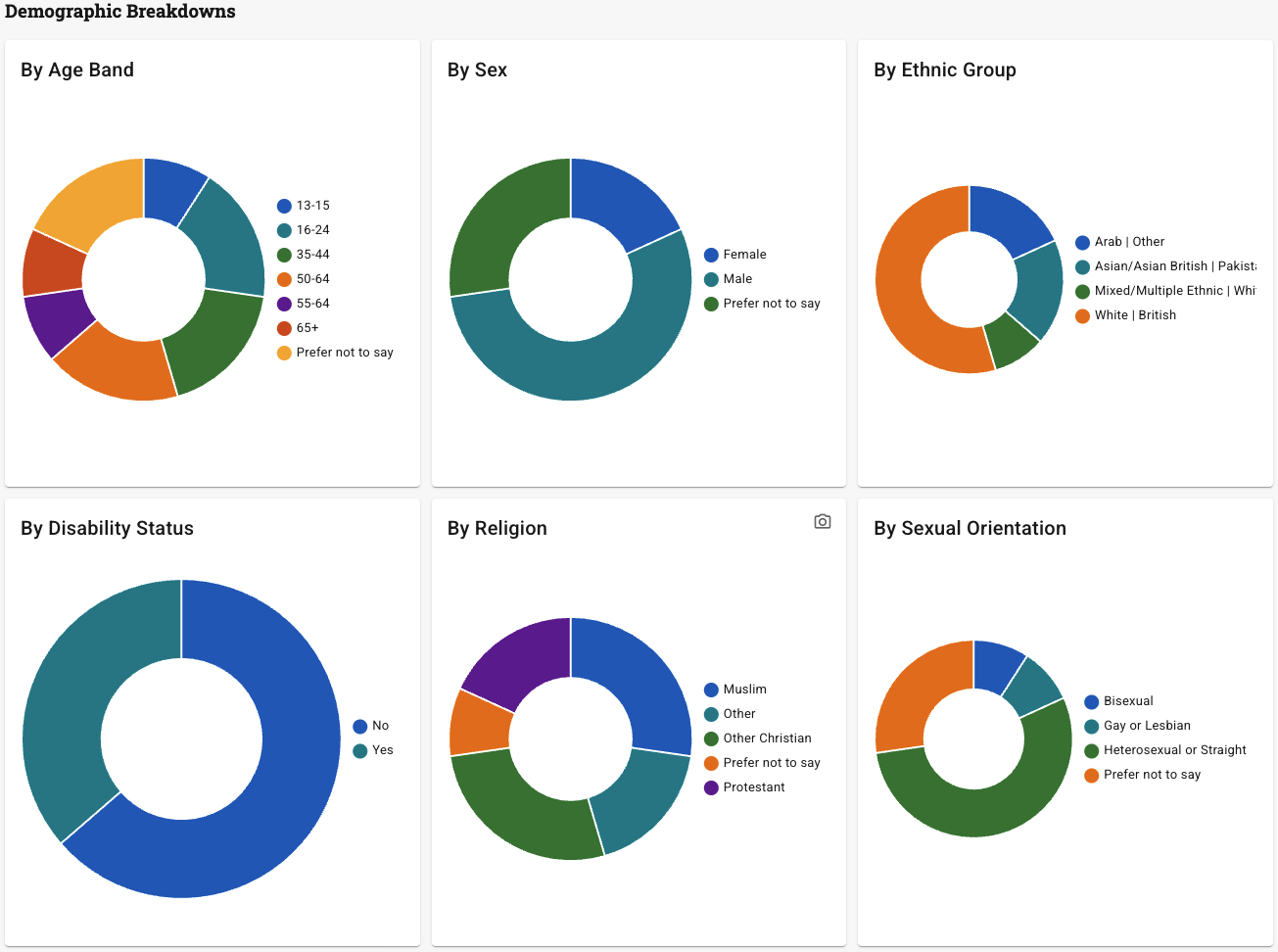
The data shown is for demonstration purposes and does not represent real learners.
How privacy is protected in these reports
Every figure in these reports is an anonymised group statistic. Here is exactly what that means in practice:
- No individual answers are ever visible. Administrators and programme managers see totals and percentages for the group, not the responses of any individual participant.
- Demographic data is treated with extra care. It is classified as special category data and never appears in CSV exports. It is only used in these anonymised group summaries.
- Small groups are protected. Where fewer than 5 participants have responded in a given category, the figure is suppressed to prevent anyone from being identified.
- Demographic questions are always optional. Participants who prefer not to answer simply skip that section. Their other survey responses are still included in all other reports.
If you are a learner reading this: your individual answers are private to you. The only thing programme managers can see is how the group as a whole is performing, expressed as percentages and totals. No one can see your personal responses.
Things to Know
- Surveys are a premium feature. You will need to have surveys enabled for your community or provider before you can use them on individual pathways.
- Once surveys are turned on for a pathway, everything happens automatically. Participants receive surveys at the right times. You do not need to do anything.
- Equality monitoring questions are completely optional. Participants can skip the entire section if they want, and this data is kept separate and secure.
- Answers are saved automatically, so participants can take breaks and come back later without losing any of their responses.
- All survey data is handled according to Navigatr's privacy policy. Equality monitoring data (also known as special category data) is never shared with any organisation, including providers, communities, or other third parties. Only anonymised summaries are used for reporting.
- Participants need to give consent before completing surveys. You can customise the consent text at the community level to match your programme's requirements.
- You can view survey statistics at the pathway, provider, or community level, giving you the flexibility to report at whatever level you need.
Get Started with Surveys
Whether you are new to Navigatr or already using the platform, here is how to start measuring impact with surveys.
- New to Navigatr? Start a free trial to explore the platform. Surveys are a premium feature — contact support@navigatr.app to get them enabled once you are set up.
- Already have an issuer account? Surveys are a premium feature. Get in touch at support@navigatr.app and we will help you get them enabled.
Was this article helpful?
That’s Great!
Thank you for your feedback
Sorry! We couldn't be helpful
Thank you for your feedback
Feedback sent
We appreciate your effort and will try to fix the article