The Navigatr‑Moodle integration lets you automatically issue digital badges and certificates from Navigatr when learners complete courses in Moodle. Using the official Navigatr plugin, educational institutions and training providers can bridge Moodle’s learning environment with Navigatr’s professional badging platform, boosting learner motivation, evidence of skills, and shareable digital credentials.
This guide walks you through how the integration works, how to install and configure the plugin, and how to map badges to course completions so that learners receive their credentials automatically.
Key Features of the Integration
- Automatic Badge Issuance: Create a one-to-one link between a Navigatr digital badge and a Moodle Course. Badges are issued in the background whenever a learner meets the completion criteria you define in Moodle.
- Secure API Communication: Requests are authenticated using your Personal Access Token (PAT) and sent over HTTPS
- Retry Logic and Audit Trail: Failed badge issuance attempts are retried, logged, and tracked for review
- Multi‑Environment Support: Use staging and production environments for testing and live issuing
- Privacy Compliance: Full GDPR support with user data export and deletion options
Before You Begin
Make sure you have the following before installing the plugin:
- Moodle Version: 4.1 or later (tested on 4.1, 4.4, and 4.5)
- PHP Version: 8.1, 8.2, or 8.3
- A Navigatr admin account. If you don’t have one, you can sign up for a free trial here: Sign up for a Navigatr Free Trial
- Your Navigatr Personal Access Token
- Outbound HTTPS access to Navigatr API endpoints
Installation and Setup
Follow these steps to install the Navigatr plugin on your Moodle server:
- Download the plugin files from the Plugin Page and place them in the
local/navigatr/directory of your Moodle installation - In Moodle, navigate to Site administration > Plugins > Local plugins > Navigatr, to configure your Navigatr connection
- Enter your Navigatr Personal Access Token in the PAT field. Generate a Personal Access Token in your Navigatr User Settings page.
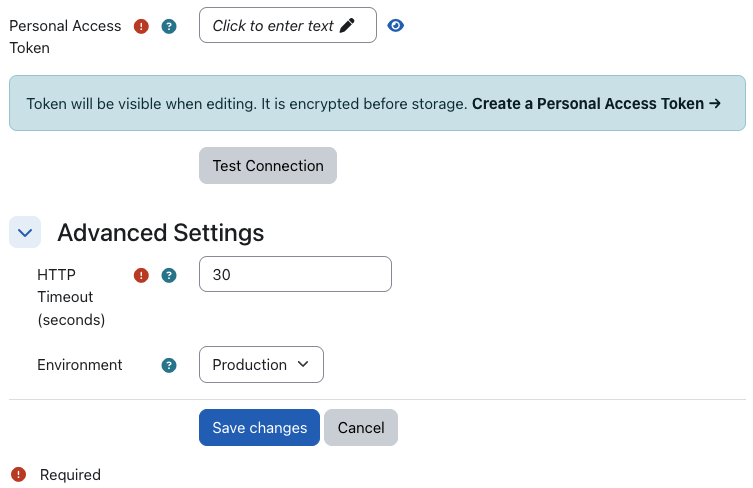
- Optionally, you can configure the following:
- HTTP Timeout (Advanced): Configure request timeout (default: 30 seconds). Increase if you experience timeout errors
- Environment (Advanced): If you would like to test with your account on the Navigatr Staging platform, choose Staging
- Click “Test Connection” to verify your PAT is valid and a connection can be made
- Once you’re satisfied everything is configured correctly, click “Save Changes”
You can remove the connection by clicking the “Remove Connection” button that appears when credentials are configured. But be careful before removing the connection, because this will clear your stored Personal Access Token, and it will disable existing badge mappings on your courses.
Mapping Courses to Badges
Follow these steps to link a Navigatr badge to a Moodle course.
- In Moodle, go to the course you intend to badge.
- Navigate to More > Navigatr Badge
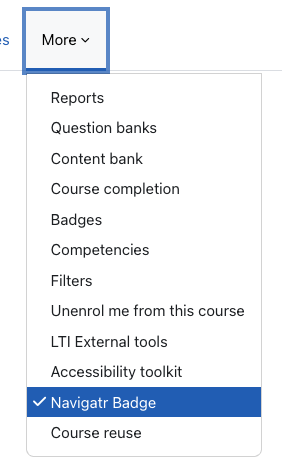
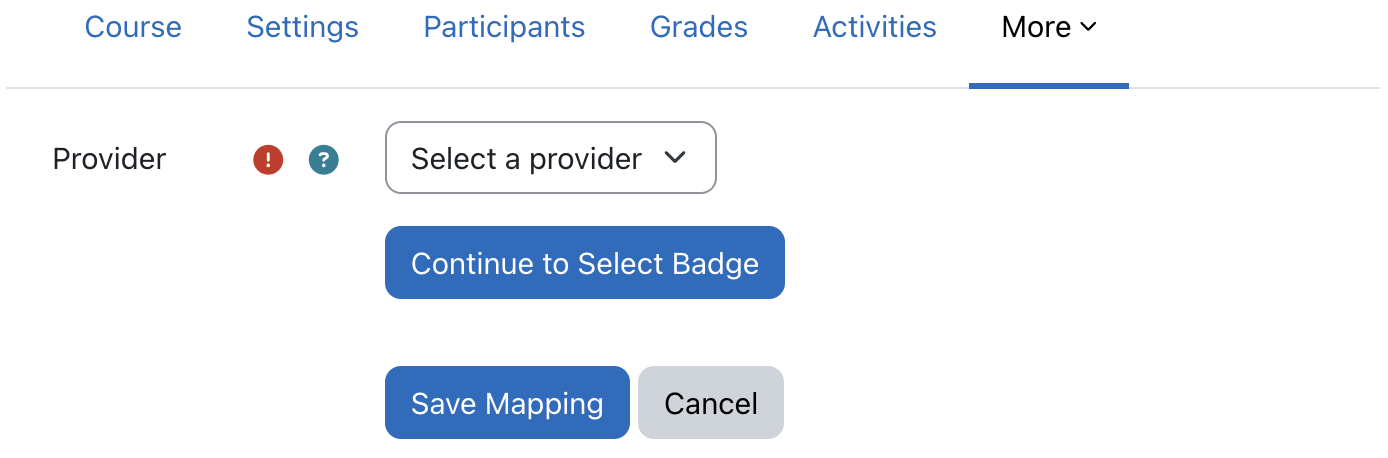
- Select a provider from the dropdown. This is the provider from which the badge will be issued. Click “Continue to Select Badge”.
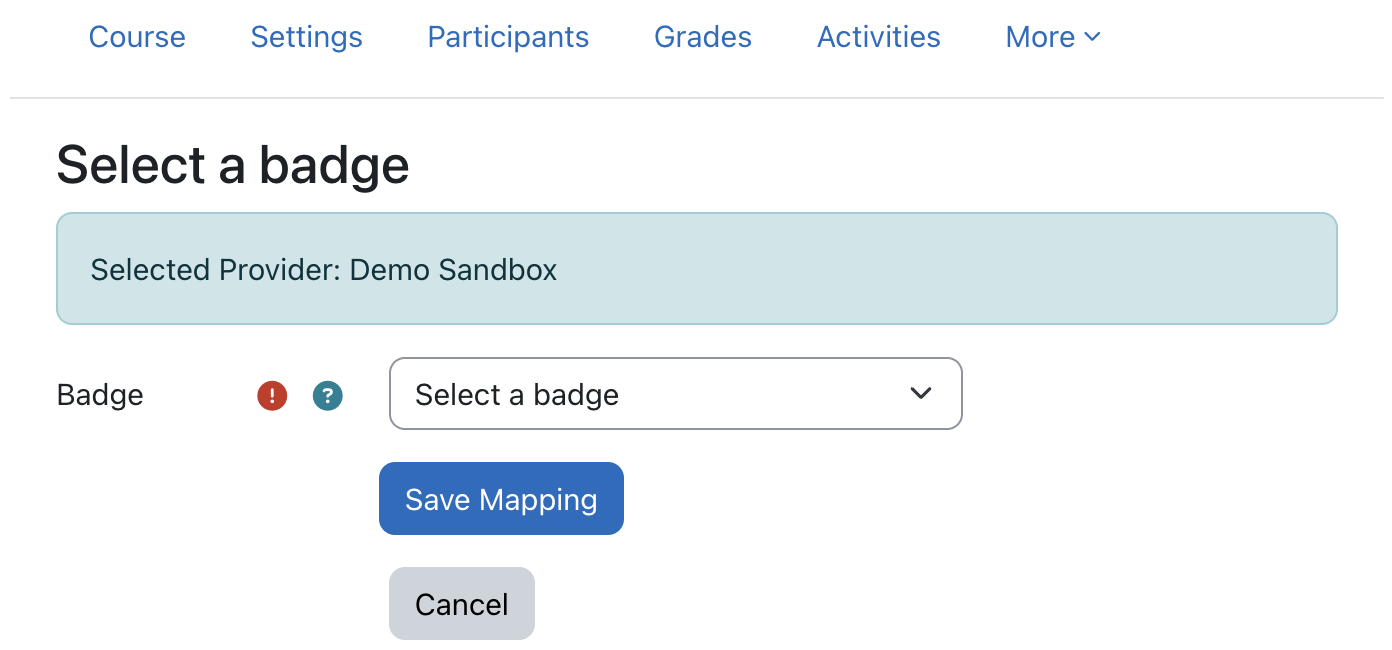
- Choose a badge from the provider’s badge library. Click “Save Mapping”.
- Check that the linking was successful by navigating to More > Navigatr Badge. Here, you can:
- View Badge: Opens the badge in Navigatr
- Change Badge: Select a different badge to issue upon course completion
- Remove Badge: Remove the link between your course and the badge
Your Moodle course has now been successfully linked to a Navigatr badge. The badge will be issued automatically to users who complete the course.
Testing and Verification
After mapping courses, verify that everything is working:
- Simulate or complete a test learner enrolment and course completion.
- Confirm that the badge is issued and appears in the learner’s Navigatr profile (you should also receive an email from Navigatr).
- Check the audit logs in the plugin to review issuance status and any errors.
Next Steps
- Personal Access Tokens for API and Integrations explains how to generate and manage your token.
- For more advanced features and information on the Navigatr Moodle plugin, consult the plugin documentation.
- The Navigatr Moodle plugin is an open source project. If you’re interested in contribution, visit our GitHub repository.
If you’re stuck or need assistance, you can contact Navigatr Support at support@navigatr.app.
Was this article helpful?
That’s Great!
Thank you for your feedback
Sorry! We couldn't be helpful
Thank you for your feedback
Feedback sent
We appreciate your effort and will try to fix the article