The badge image visually represents the value and credibility of an achievement. A well-designed badge helps earners feel proud to share it and helps your organisation build recognition every time someone displays it.
Your logo is central to your brand, and displaying it effectively on your badges helps your achievements stand out. The Badge Designer makes this easy, ensuring your badges consistently showcase your logo at its best.
If you haven’t created your badge yet, check this article and create your first badge.
Choose the Type and Mode for Your Badge
The Navigatr Badge Framework uses the type of learning and the mode to shape and shade your badge image. This helps show the purpose of the badge and the level of effort needed to earn it.
Type of Learning
- Informal Learning: Self-directed or experiential learning.
- Training: Structured learning focused on specific skills or subjects.
- Certified: Recognised by an external body.
- Qualification: An accredited programme or qualification.
- Membership: Participation in a group or community.
Mode
- Explore: The starting point for engaging with a new subject or skill.
- Deepen: Building knowledge and understanding.
- Apply: Practical use or application of skills.
- Teach: Instructing or guiding others in the subject.
- Lead: Leadership and expertise in the field.
Choosing the right type and mode ensures your badge image matches the learning goals and communicates its purpose.

This guide shows how the type and mode affect the badge’s shape and shading, making it easier to understand its purpose at a glance.
Add Your Logo
Set Up Your Brand Kit
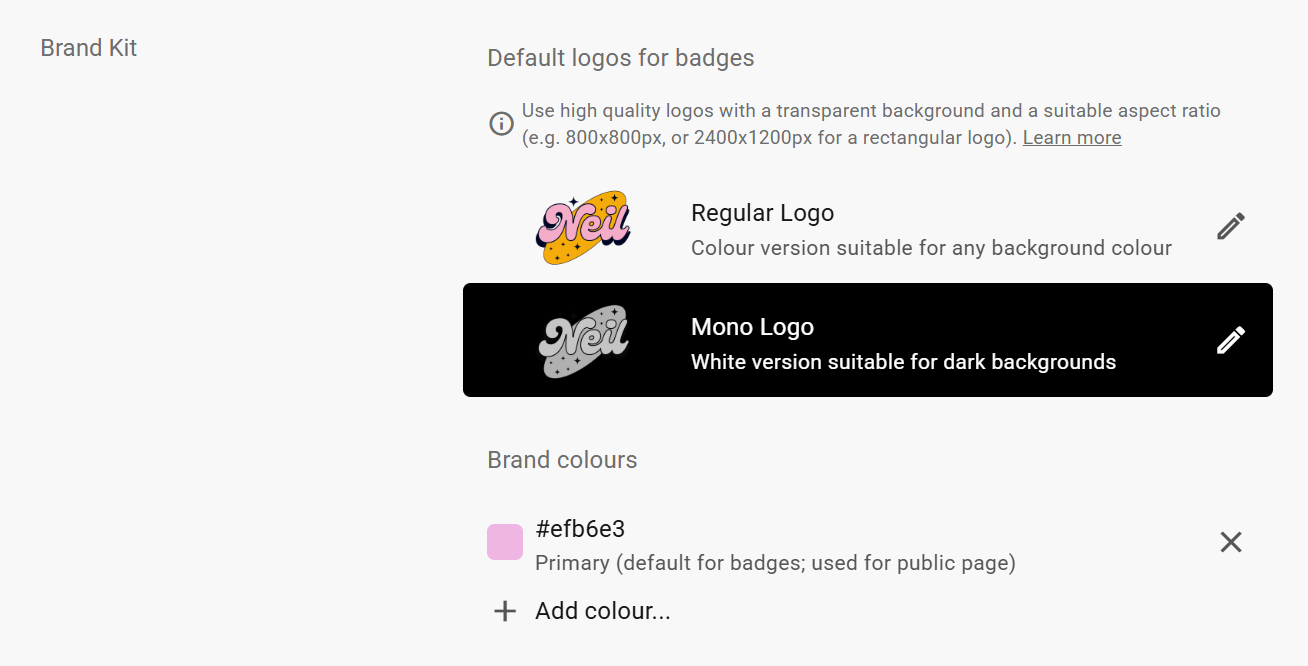
If you already have a logo, upload it to the Brand Kit in your provider settings. The Brand Kit has two logo slots: a Regular Logo (colour version for any background) and a Mono Logo (white version for dark backgrounds). The Badge Designer automatically selects the right version depending on the badge mode.
Once uploaded, every badge you create will automatically feature your logo, keeping your branding consistent.
Logo Tips
To make sure your logo looks professional on your badges, follow these tips:
- Use PNG Format: Your logo should be a PNG file with a transparent background.
- Crop Any Blank Space: Remove extra blank space around your logo to prevent it from appearing too small. Tools like Canva can help you crop your logo.
- Use High Resolution Images: Your logo should be high quality with a transparent background and a suitable aspect ratio.
- Follow Recommended Dimensions: For best results, use square logos at 800x800px and rectangular logos at 2400x1200px.
Uploading a logo with too much blank space makes it look smaller and less noticeable on the badge.
For example, this logo has a lot of blank space:

Adding this logo to your badge looks like this. Notice how the logo appears smaller and doesn’t fill the space well:

If you crop the blank space around your logo, it will look bigger and clearer. Here’s how the cropped logo looks:

When added to a badge, the cropped logo looks clear and professional, giving your brand more visibility to anyone who sees the badge:

Change Title and Subtitle
The Badge Designer lets you customise your badge title and subtitle. The title is the main badge name (up to 40 characters) and the subtitle adds extra context like your organisation name (up to 22 characters).
Make your titles meaningful and relevant. If you need to control where the title wraps to a second line, insert \n at the point where you want the break.
Change Colours
You can customise your badge’s background colour to match your branding. The colour picker lets you enter a hex colour code or choose from the brand colours saved in your provider settings.
Quality Assurance
Our Quality Assurance team can review and improve your badge for consistency and professionalism. We will add the “Quality Assured by Navigatr” ident to show it meets the Navigatr Badge Framework’s standards.

Check this article to find out how to have your badge quality assured.
Final Tips
- Preview Your Badge: Use the preview option in the Badge Designer to make sure it looks exactly how you want it to.
- Ask for Help: If you’re unsure about your logo or badge design, contact us at support@navigatr.app.
Alternatively, you can watch this video tutorial to learn how to create a badge on Navigatr.
Was this article helpful?
That’s Great!
Thank you for your feedback
Sorry! We couldn't be helpful
Thank you for your feedback
Feedback sent
We appreciate your effort and will try to fix the article