The Activities page in Navigatr allows you to manage and monitor the attendees of your learning activities. You can view who has joined an activity, track their progress, and take actions such as issuing badges or removing participants if needed.
This article explains how to use the Participants and Statistics tabs to effectively manage attendees.
Accessing Activity Attendees
From the left-hand menu, navigate to Activities.
Select the activity you want to manage.
Open the Attendees tab to see a list of all attendees.
Use the Statistics tab for an overview of engagement and completion rates.

Tracking Individual Attendees Progress
Within the Attendees tab, each attendee is listed with key details, making it easy to monitor engagement:
Their name, which links to their profile
Their email address
Status (e.g., in progress, completed)
Register date for the activity
Attend method
Button to issue badge (if they failed to attend the activity)
Button to remove the attendee from the activity
Option to export data as CSV
Option to copy emails
This view helps you identify attendees who are actively participating and those who may need additional support.
Using the Statistics Tab
The Statistics tab provides an at-a-glance summary of the activity:
Total number of attendees enrolled
Number of attendees who have completed the activity
Number awaiting attendence
Overall turnout
Track how many learners are actively following the activity
This tab is useful for understanding engagement trends, identifying bottlenecks, and evaluating the overall effectiveness of your activity.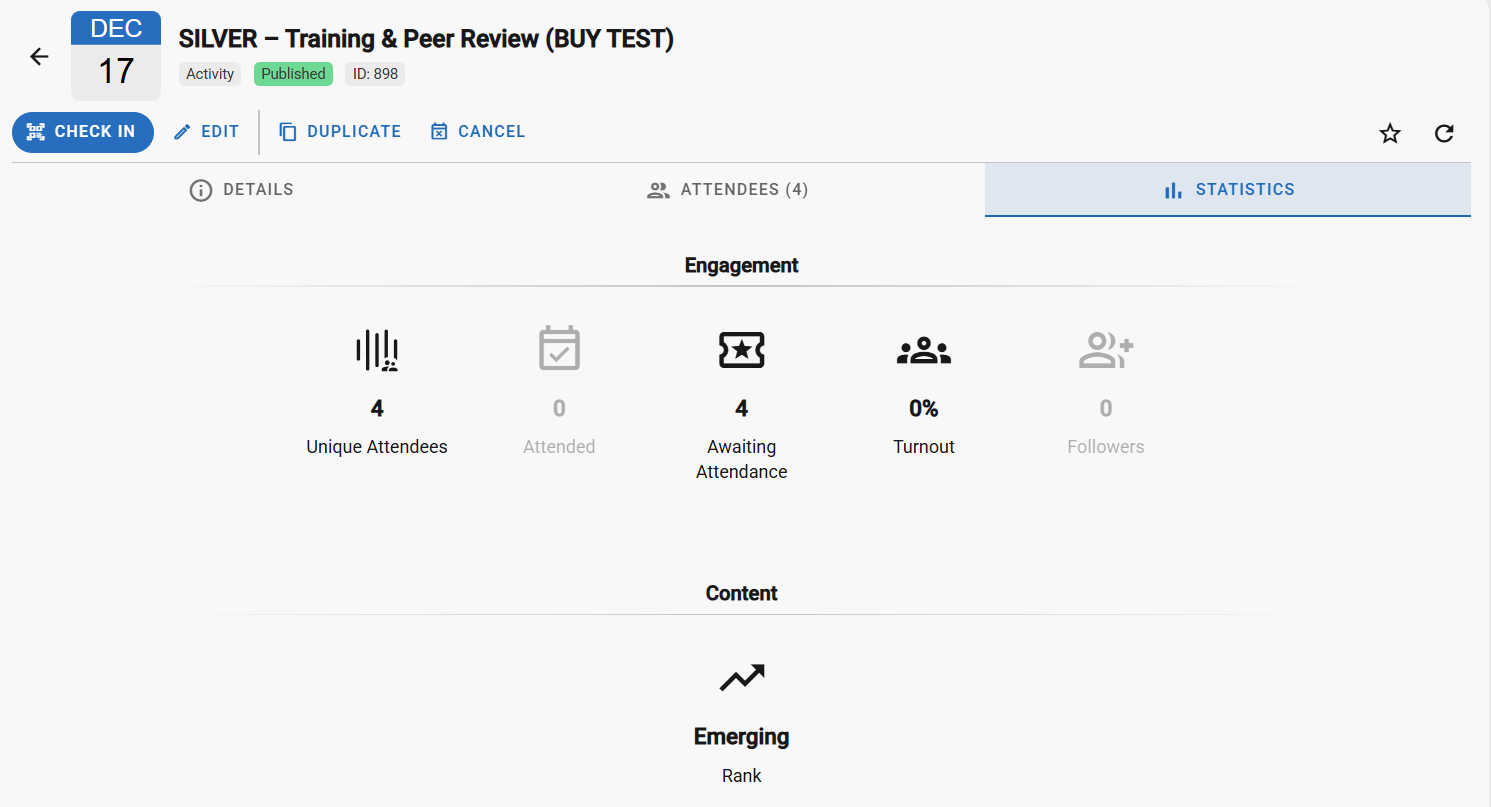
Best Practices for Managing Attendees
Regularly review the Participants tab to monitor engagement and completion.
Use the Statistics tab to identify patterns and make data-driven decisions about activity design.
Follow up with attendees who have not completed required badges or steps.
Ensure badges are clearly associated with activities to make progress tracking straightforward.
By effectively using the Participants and Statistics tabs, you can ensure your activities are engaging, monitor learner progress, and provide support where needed.
For a detailed guide on how to create and manage an activity click here
Was this article helpful?
That’s Great!
Thank you for your feedback
Sorry! We couldn't be helpful
Thank you for your feedback
Feedback sent
We appreciate your effort and will try to fix the article