The Recipients tab on any badge shows you everyone who has been issued that badge, their current status, and the actions available for each person. This is where you track progress, fix delivery problems, and manage records.
Finding the Recipients Tab
In your admin dashboard, go to Content > Badges. Select the badge you want to review. On the badge detail page, click the Recipients tab.
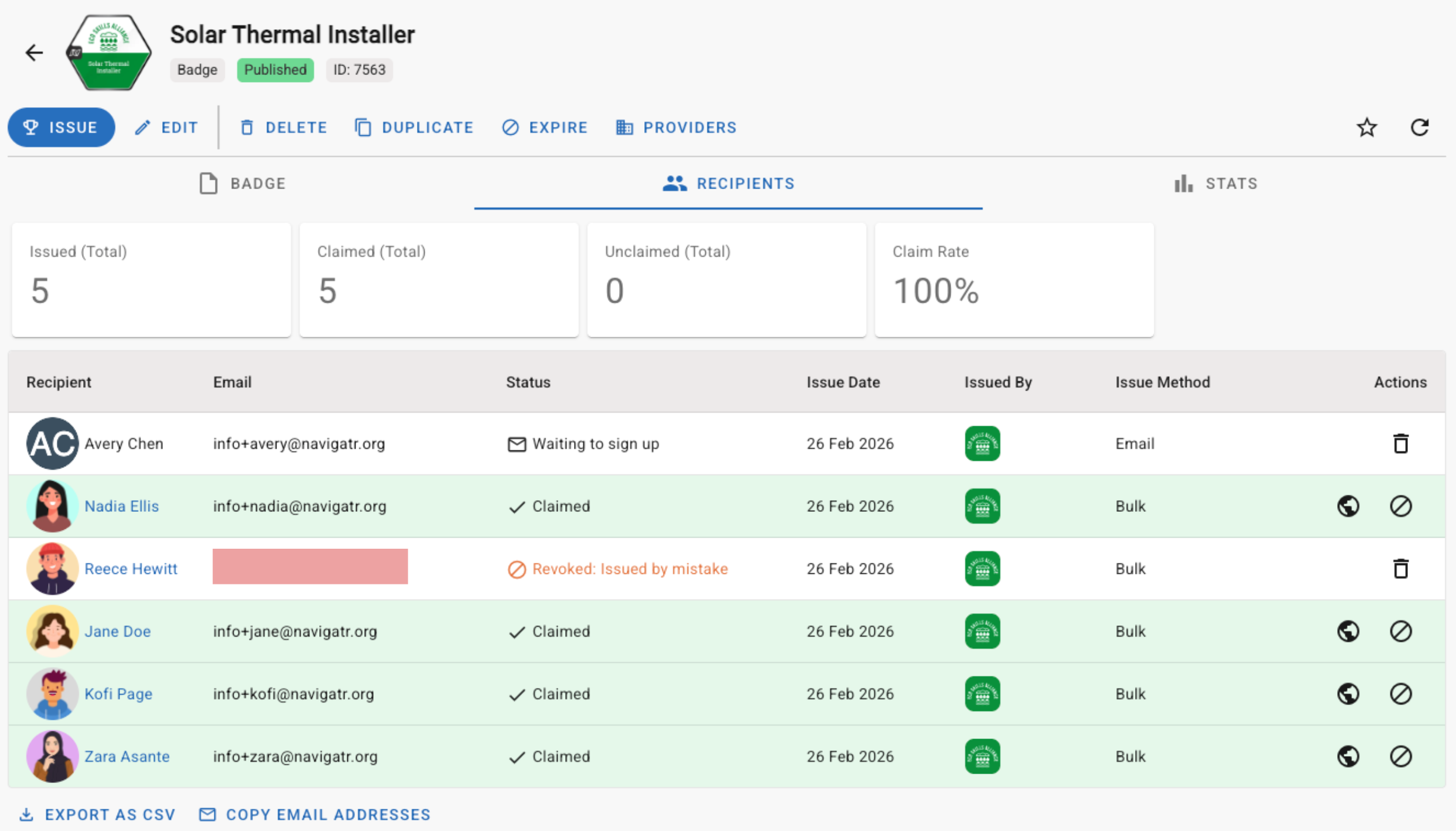
Screenshot: The Recipients tab on a badge detail page, showing the table with columns for Recipient, Email, Status, Issue Date, Issued By, Issue Method, and Actions. A search box is visible above the table.
What You Can See
The Recipients table has seven columns:
- Recipient — The earner's name and profile picture.
- Email — Their email address. Click it to copy.
- Status — Where the badge is in the process. See Understanding Badge Statuses for a full explanation of each one.
- Issue Date — When the badge was issued.
- Issued By — The provider or organisation that issued it.
- Issue Method — How the badge was issued, for example via email or via CSV upload.
- Actions — The available actions depend on the recipient's current status.
Use the search box above the table to find a specific person. You can search by name, email address, or any other visible detail.
Actions You Can Take
The actions available for each recipient depend on their status. Find the right one below.
Revoke a Badge
Available for: Claimed recipients.
Use this when a badge was issued in error, or when the recipient is no longer entitled to hold it.
- Click the Revoke icon next to the recipient.
- Optionally, enter a reason. The recipient will receive a notification and the reason will appear on their record.
- Click Revoke to confirm.
The status changes to Revoked and the badge is removed from the recipient's profile.
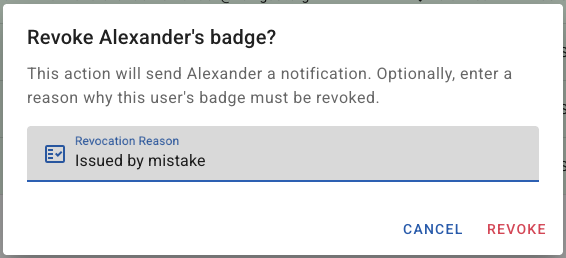
Screenshot: The Revoke badge dialog, showing the optional Revocation Reason text field and the Revoke and Cancel buttons.
Fix a Failed Delivery
Available for: Failed recipients.
A Failed status means the claim email could not be delivered. This is usually a typo in the email address. Use Amend and Retry to correct it and resend.
- Click the Amend and Retry icon next to the recipient.
- Enter the correct email address.
- Click Issue. The claim email is sent to the new address.
Delete a Badge Record
Available for: Pending, Revoked, Failed, and Complained recipients.
Deleting a record removes it from the system entirely. The recipient is not notified. Use this to clear records that were issued in error and have not yet been claimed. For badges that have already been claimed, revoke first rather than delete.
- Click the Delete icon next to the recipient.
- Click Delete to confirm.
View the Public Badge Assertion
Available for: Claimed recipients.
Click the View Assertion icon next to a claimed recipient to open their public badge page. This shows exactly what anyone sees when the recipient shares their badge.
Export and Copy
Two options are available below the recipients table.
- Export as CSV — Downloads a spreadsheet with all recipients, including name, email address, status, issue date, and issuing provider. Use this for reporting, auditing, or sharing data with colleagues.
- Copy email addresses — Copies all recipient email addresses to your clipboard in one click. Useful for sending follow-up communications outside Navigatr.
Related Articles
- Understanding Badge Statuses — A full explanation of Pending, Claimed, Revoked, Failed, and Complained.
- How to Bulk Issue Badges via CSV — Issue badges to multiple recipients at once.
- How to Manage Digital Badges — Edit, duplicate, expire, or delete a badge.
If you have any questions about managing your badge recipients, contact support@navigatr.app.
Was this article helpful?
That’s Great!
Thank you for your feedback
Sorry! We couldn't be helpful
Thank you for your feedback
Feedback sent
We appreciate your effort and will try to fix the article